Bildegalleri
(1/21)













Gevey Ultra Plus - Lås opp din iPhone 4 iOS 4.0 til iOS 5
Til salgs49 kr
Beskrivelse
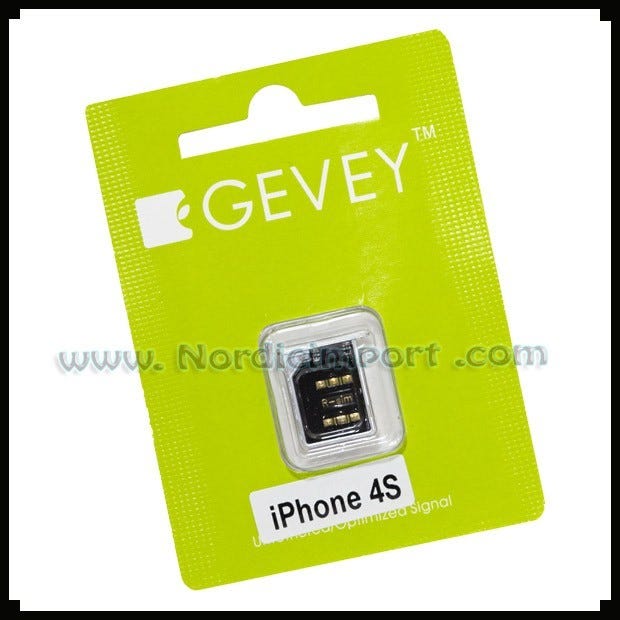
Gevey Ultra+ låser opp iphone 4.
Vil ikke ugyldiggjøre garantien
GEVEY PRO Låser opp
iOS 4.0, 4.1, 4.2.1, 4.3, 4.3.1, 4.3.2,4.3.3, 4.3.4 og 4.3.5
iOS 5
Baseband 1.59, 2.10, 3.10.1, 4.10, 4.10.1
Trenger ikke å kuttet sim-kortet
Kompatibel med alle sim
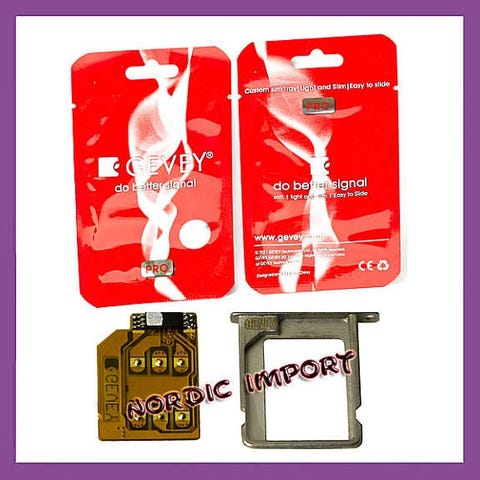
Pakkens innhold:
* 1x Custom GEVEY Sim skuff
* 1x GEVEY Ultra+ Sim
Features:
This is the latest untethered and most stable version from Gevey.
Notes: When connecting the phone to the computer, please do not upgrade to iOS5 and above software version, otherwise the phone cannot be unlocked.
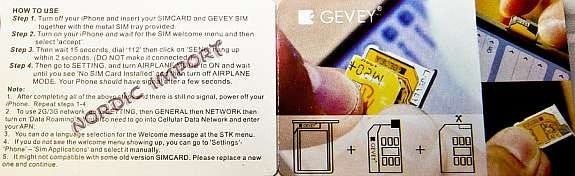
How to use the Gevey Ultra+?
1. Jailbreak your iPhone 4, (need to do manually; if you do not have Cydia, visit iclarified.com then go to their tutorials
section)
2. Open Cydia and add http://www.x3groove.com to cydia source.
3. Install FusiousMod.com. Click FusiousMod.com>FuriousMod>Install>Confirm, start installation, Click restart Spring Board.
If the installation is success, a red FuriousMod icon will be appeared.
4. With the use of the transparent sticker from the package, cut the SIM card in the exact same size. Make sure the edge of the
SIM card has 1mm gap apart from the black square chip. (Important Note: If the chip on the SIM Card contact with the chips bottom,
it will cause the chip short circuit, and it will show NO SIM on the iPhone.). After cutting the sim, put your sim card on the
gevey ultra sim tray and insert into the iPhone.
5. Turn on your iPhone 4. Welcome Message screen will appear. Turn on the phone, if a dialog pops up, click Cancel, no other
operation is needed, wait 1-2 minutes for the phone signal to be appeared. If after 5 minutes, there is no signal appearing,
please restart the phone without reinsert the card holder, and wait for the phone signal to be appeared.
6. NOTE: Gevey Welcome Message will show up, then followed by the "No Sim" message. Do not worry. Nothing you need to do,
just patiently wait for 1-2 min.
7. Note: This item can be used if the phone has not been jail break. Click Setting>Phone>Sim application>Turn on Language.
After that follow the steps that same as Gevey Pro and dial 112, and wait until the signal to be appeared. When restarting the
iPhone, you need to redo the whole process
For IPHONE iOS 5.0 Unlock: (Advanced EXPERT Users ONLY): Warning: Use at Your Own Risk - Baseband Preservation Method
Update to iOS 5.0 using Sn0wBreeze (2.8b8 or above) or RedSn0w (0.9.9b5 or above) baseband preservation tutorial.
Put your phone into Pwned DFU mode using a tool provided by Sn0wbreeze called iREB
Use that CUSTOM created IPSW iOS 5.0 to update your phone.
then use any AT&T or Rogers SIM to activate it.
Then follow the Gevey Pro dail 112 process
Turn off your phone
Take Gevey SIM out
Insert your Gevey SIM again
Turn On your phone
Wait for the black screen to appear and tap `accept´ (If it doesn´t appears go to Settings>Phone>SIM Applications and select `English´).
Wait for the `No Service´ message on the status bar and then count 15 seconds.
Dial 112 and count 3 seconds then hung up.
Go to Settings and toggle AirPlane mode REPEATEDLY, every time you toggle on and off a message popup will appear, continue to do that until NO popup appears, the statusbar message will say "Searching?" and few seconds later you´ll get signal.
IMPORTANT NOTE if you have iOS 5.0:
Make sure that your IPHONE is still on one of these Basebands; 1.59, 2.10, 3.10.1, 4.10, 4.10.1 or else it will not work with iOS 5.0
Vil ikke ugyldiggjøre garantien
GEVEY PRO Låser opp
iOS 4.0, 4.1, 4.2.1, 4.3, 4.3.1, 4.3.2,4.3.3, 4.3.4 og 4.3.5
iOS 5
Baseband 1.59, 2.10, 3.10.1, 4.10, 4.10.1
Trenger ikke å kuttet sim-kortet
Kompatibel med alle sim
Pakkens innhold:
* 1x Custom GEVEY Sim skuff
* 1x GEVEY Ultra+ Sim
Features:
This is the latest untethered and most stable version from Gevey.
Notes: When connecting the phone to the computer, please do not upgrade to iOS5 and above software version, otherwise the phone cannot be unlocked.
How to use the Gevey Ultra+?
1. Jailbreak your iPhone 4, (need to do manually; if you do not have Cydia, visit iclarified.com then go to their tutorials
section)
2. Open Cydia and add http://www.x3groove.com to cydia source.
3. Install FusiousMod.com. Click FusiousMod.com>FuriousMod>Install>Confirm, start installation, Click restart Spring Board.
If the installation is success, a red FuriousMod icon will be appeared.
4. With the use of the transparent sticker from the package, cut the SIM card in the exact same size. Make sure the edge of the
SIM card has 1mm gap apart from the black square chip. (Important Note: If the chip on the SIM Card contact with the chips bottom,
it will cause the chip short circuit, and it will show NO SIM on the iPhone.). After cutting the sim, put your sim card on the
gevey ultra sim tray and insert into the iPhone.
5. Turn on your iPhone 4. Welcome Message screen will appear. Turn on the phone, if a dialog pops up, click Cancel, no other
operation is needed, wait 1-2 minutes for the phone signal to be appeared. If after 5 minutes, there is no signal appearing,
please restart the phone without reinsert the card holder, and wait for the phone signal to be appeared.
6. NOTE: Gevey Welcome Message will show up, then followed by the "No Sim" message. Do not worry. Nothing you need to do,
just patiently wait for 1-2 min.
7. Note: This item can be used if the phone has not been jail break. Click Setting>Phone>Sim application>Turn on Language.
After that follow the steps that same as Gevey Pro and dial 112, and wait until the signal to be appeared. When restarting the
iPhone, you need to redo the whole process
For IPHONE iOS 5.0 Unlock: (Advanced EXPERT Users ONLY): Warning: Use at Your Own Risk - Baseband Preservation Method
Update to iOS 5.0 using Sn0wBreeze (2.8b8 or above) or RedSn0w (0.9.9b5 or above) baseband preservation tutorial.
Put your phone into Pwned DFU mode using a tool provided by Sn0wbreeze called iREB
Use that CUSTOM created IPSW iOS 5.0 to update your phone.
then use any AT&T or Rogers SIM to activate it.
Then follow the Gevey Pro dail 112 process
Turn off your phone
Take Gevey SIM out
Insert your Gevey SIM again
Turn On your phone
Wait for the black screen to appear and tap `accept´ (If it doesn´t appears go to Settings>Phone>SIM Applications and select `English´).
Wait for the `No Service´ message on the status bar and then count 15 seconds.
Dial 112 and count 3 seconds then hung up.
Go to Settings and toggle AirPlane mode REPEATEDLY, every time you toggle on and off a message popup will appear, continue to do that until NO popup appears, the statusbar message will say "Searching?" and few seconds later you´ll get signal.
IMPORTANT NOTE if you have iOS 5.0:
Make sure that your IPHONE is still on one of these Basebands; 1.59, 2.10, 3.10.1, 4.10, 4.10.1 or else it will not work with iOS 5.0
NB: Knappen for å vise hele beskrivelsen har kun en visuell effekt.
Nøkkelinfo
- Type
- Annet
- Tilstand
- Ny
Generell info
********************************************************
MVA913946812NO
www.nordicimport.com AS
www.Billig.st
********************************************************
Alt i nettbutikken finnes på lager og sendes fra Norge.
********************************************************
MVA913946812NO
www.nordicimport.com AS
www.Billig.st
********************************************************
Alt i nettbutikken finnes på lager og sendes fra Norge.
********************************************************
Beliggenhet
| FINN-kode | 52335589 |
|---|---|
| Sist endret | 23.1.2026 kl. 14:01 |